
Please browse the frequently asked questions. If you don’t find an answer to your question, please contact us via the form below.
To properly install Guard PC Cleaner please follow the steps below.
If for any reason you wish to uninstall our software, please follow the steps below.
To Uninstall Guard PC Cleaner Automatically:
To uninstall Guard PC Cleaner Manually:
Guard PC Cleaner is designed for simplicity and ease of use. All you need to do is register online or over the phone. Enter the activation code as described below.
1. Click on the Register Now Button in the lower right corner of the application.
The wizard will take you through registration process, during which Guard PC Cleaner Utility will show pop-up screen with an activation code box.
2. Complete the Registration Process.
Follow the on-screen instructions.
3. Copy & Paste the activation code into the activation box.
Copy the activation code you received into the activation box and click the Activation button to complete the activation process.
Can I Try Guard PC Cleaner First?
Yes! Guard PC Cleaner has a trial period of 14 days.
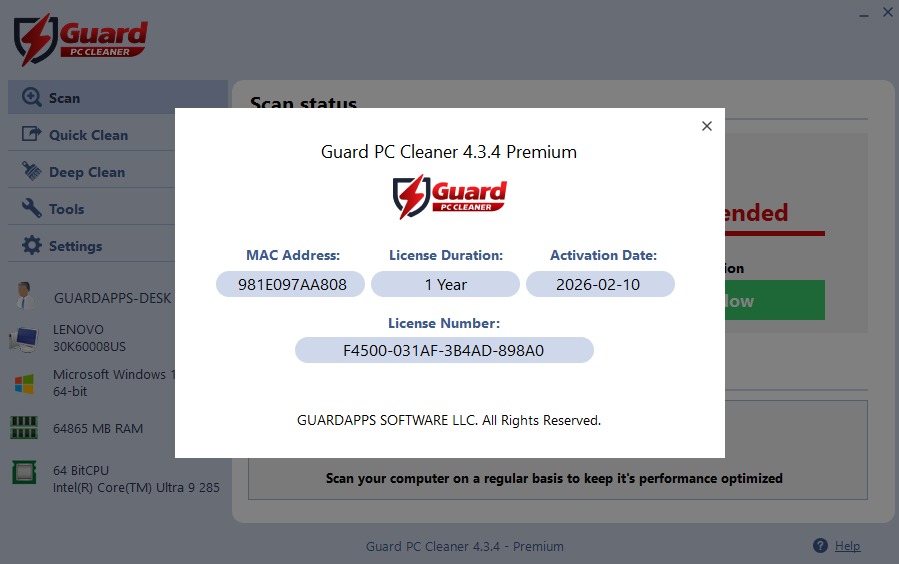
Where can I find my license information?
In the right lower corner of the software, click “Help” button it will open a drop-down menu.
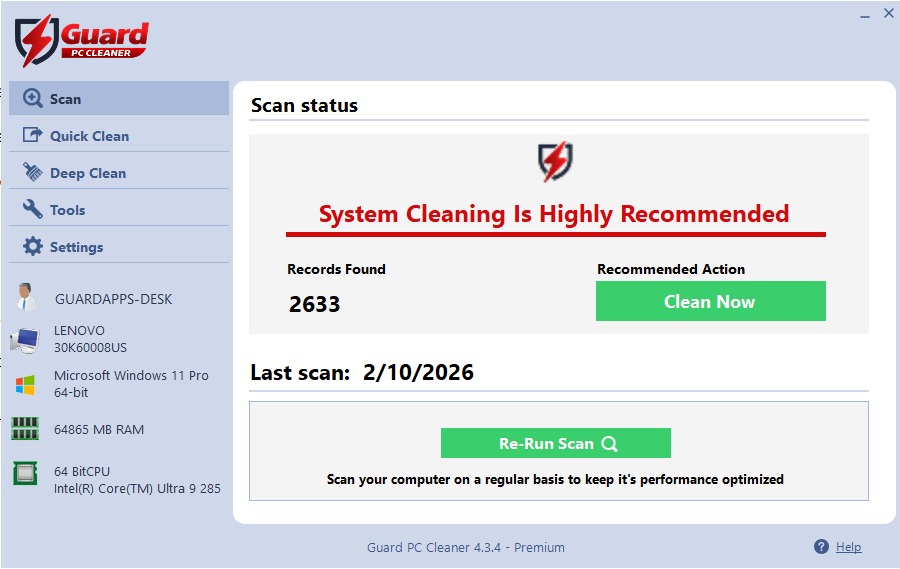
n the subcategories choose “License Information”.
How do I Activate my License?
When the software shows the home screen in the lower left corner of the Guard PC Cleaner is the button “Register Now”.
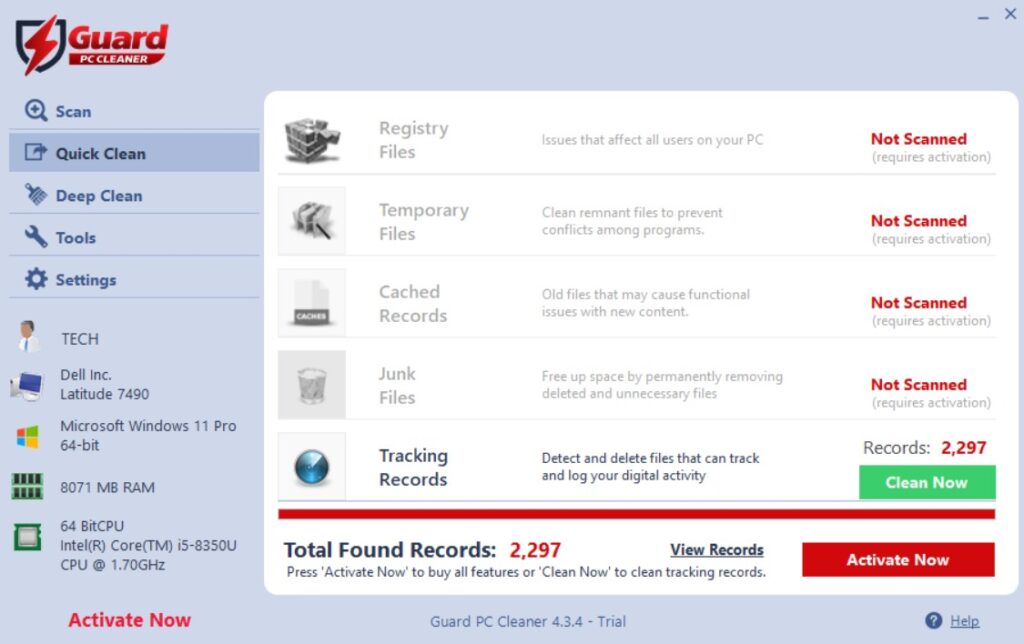
Click on the button and the software will open a registration and license window. If you already have a license key, fill in the form with your first and last name, email through which notifications will be received, license number key you received. After filling the form click “Register Now” button below the form. A confirmation will be received. To continue using software exit the window by clicking the cross in the upper right screen.
Is The Registry Backed Up Before The Restore Action?
Restore points are created and logged automatically. You can utilize them and track them at the restore points screen, when clicking on the restore button.
In order to upgrade you free version of the software, you need to purchase Premium version. This can be done in several ways.
On the website:
Click here to open the Guard PC Cleaner webpage. In the upper left screen next to download button you will find “Register Now” button. Upon clicking on it the website will open a new tab or window. The page asks for your information to place order for product. You will be presented with activation key which you can copy/paste into the software.
Within the software
In the lower right corner of software screen is the “Register Now” button. When clicking on it the software opens a window to insert and activate the license key, as well as to register a Premium version. Clicking on “Upgrade Now” and a new tab or window will open in the Internet Browser to let you fill in the information and place an order. The activation key in both cases appears on post-purchase screen, and it is sent to email address.
How Come the Same Errors Keep Showing After my PC is cleaned?
Guard PC Cleaner finds and cleans system problematic files. However, there are programs that recreate the same invalid entries over and over again. There is no need to be worried though as just a small number of records may reappear after being cleaned by Guard PC Cleaner .
Is The Registry Backed Up Before The Restore Action?
Restore points are created and logged automatically. You can utilize them and track them at the restore point’s screen, when clicking on the “System restore” button in the Tools menu.
Do I Have The Latest Version Of Guard PC Cleaner ? Will My Application Be Updated Automatically?
To ensure you have the latest version of Guard PC Cleaner , click on the “Help” button in lower left corner of the screen. A drop-down menu will appear. In the “Check for Updates” section click and the software will automatically inform you if it is the latest version.
Can I Skip Scanning Of Specific Registries And Items?
You can manage what you would like Guard PC Cleaner to scan from the Guard PC Cleaner’s settings menu. During a scan of your computer, you will be able to see what keys and files Guard PC Cleaner has found and will clean, you can choose to ignore specific Registry items. Click on the “+” sign left of each Category and a list of found Registry items is shown.
Can I Schedule A Guard PC Cleaner Scan?
Yes! Open your Guard PC Cleaner . Click on “settings” and then click “Schedule”. From this menu you can select when and how often you want Guard PC Cleaner to scan your computer.
Can I find duplicate files?
Yes! In the Tools section click “Duplicate Finder”. Choose the hard drive to scan for duplicate files, and let the Guard PC Cleaner show the results.
Can I choose which Apps will run on system startup?
Yes! In the Tools menu choose startup and Guard PC Cleaner will show the list of apps that run once the Windows is started.
Can I change the language of Guard PC Cleaner ?
Yes! Guard PC Cleaner supports 23 different languages.
Office & Contact
support@guardapps.io
Mailing Address
GUARDAPPS SOFTWARE LLC
1500 McConnor Pkwy, Suite 200, Schaumburg, Illinois 60173